Point
An arrow with a ring at the tip, right on the button you need.
Wayfinger for Windows 10 and 11
Wayfinger lets your own AI look at your screen and show you where to click. Arrows, boxes, circles, highlights, and blinders that dim everything but the next step. It never clicks or types for you, so you actually learn the software.
7 days free, no card · $9.99 until December 31, then $19.99 · one-time, 30-day refund
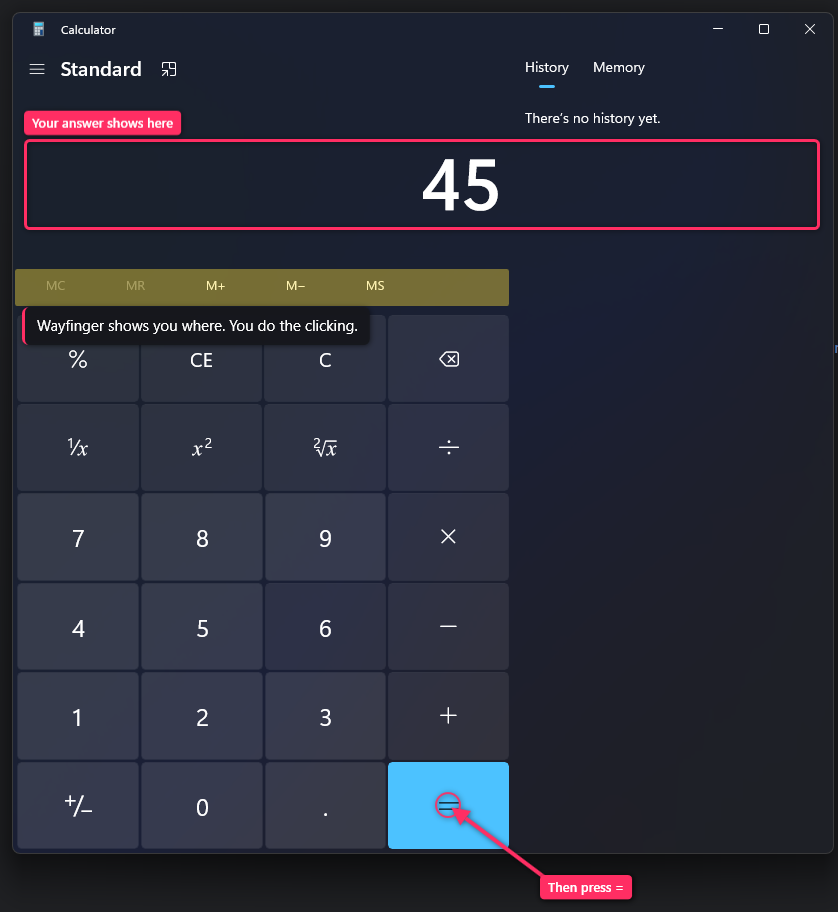
Written instructions from an AI fall apart as soon as your screen doesn’t match theirs. Wayfinger gives your AI a pen, so it can mark the exact spot on your screen, at your resolution, in your version of the app.
The marks sit on top of the real app. You can still click straight through them, and they clear themselves.
An arrow with a ring at the tip, right on the button you need.
A clean outline around a field, a panel or a whole section.
A loop around the thing that is easy to miss.
Highlighter yellow over a row, a setting or a line of text.
Everything else dims, so there is only one place to look.
A short note next to the mark: what it is and what to do.
Install it and Wayfinger waits in the tray. Nothing pops up until your AI has something to show you.
One click adds Wayfinger to Claude desktop. The first time, Claude asks you to allow its tools. Any other app that supports MCP can use it too.
You don’t have to mention Wayfinger. Ask where something is and your AI looks, finds it, and points.
Some things to try: “where’s the setting to turn off autoplay?”, “how do I mask this layer in Photoshop?”, or “walk me through a pivot table.”
Screen-guide apps with their own AI built in tend to cost $20 to $35 a month. Wayfinger uses yours, so there’s nothing to charge you for each month.
$9.99 until December 31, then $19.99
One-time purchase for Windows 10 and 11. Try every feature free for 7 days first, and if it isn’t for you, ask for a refund within 30 days.
Buy for $9.99Or download the free trial first.
Claude desktop and Claude Code, plus any app that can add a local MCP server. Wayfinger adds the eyes and the pen. Your AI does the thinking, on the plan you already pay for.
No. Wayfinger has no tools for clicking, typing or sending keys. It can only look and mark the screen. Marks are click-through, so they never get in your way, and they fade on their own.
Only what you allow: the whole screen or a single app window. Screenshots go straight to the AI app you connected. Wayfinger runs locally, opens no network port and keeps no copies.
Not yet. Wayfinger is built for Windows 10 and 11, including multiple monitors and high-DPI displays.
Wayfinger costs us nothing to run per question, because you bring the AI. So you pay once, keep it, and get a 30-day refund if it is not for you.
Download it and use every feature free for 7 days, no card needed. Buy any time to keep it.
Seven days free, every feature. Keep it for $9.99 until December 31.
